Colours in Premiere are the same in windows media player but not in VLC or Quicktime

tarr

Active member
I've edited a video an spent a lot of time color correcting, then exported it in HD H264. I Also calibrated my monitor with Spyder4ELITE befeore starting editing.

If i watch the final export in windows media player it is ok, and as crushed as it is in the Premiere Timeline, but if I watch it in VLC or Quicktime, it appears wither, with less deep blacks, and with some extra green where the blue should be.

What is this all about?
 
I found this, but now I am wondering: "How can I be sure that people will have a full dynamic range display player, and see deep blacks?"
 
The only way to ensure people see your video the way you intend is to bring them to your home and play it for them on a properly calibrated system. Outside of that, there simply can be no guarantees.
 
Last edited:
Each video player has it's own Gamma settings and not to mention the monitors themselves. A mac monitor versus a PC will both look dramatically different. The best way is to know what and where the end product will end up and color accordingly. If it goes on the web you're pretty much unable to determine the exact gamma ratio it will be shown. I usually pick one or the other to color to. Make it look great on Quicktime or Media Player and go with it. There's also quite a few other players out there that run in between the two, google it and you'll get a few more options.
 
The reason to edit on calibrated gear is to minimise potential deviation across a range of equipment. For example, if you edit on gear that enhances blue, then playback on a blue enhanced monitor will be correct, a monitor displaying correct blue will be deficient and a monitor that is already deficient in blue will be twice as deficient. In this case you have doubled potential deviation from ideal conditions. So if you're sure that your gear is correct, any issues in the playback equipment has been minimised and is the end user's issue.
 
Actually, the issue with VLC - I believe - is that by default, VLC uses a method of playback called video hardware overlay (or just hardware overlay), which allows your graphics card to render the video directly without any input from the CPU or OS. Since you're bypassing the OS, the OS isn't applying any of it's color settings to the video (like setting the gamma or color corrections that are stored in the color profile for your monitor that was created when you calibrated).

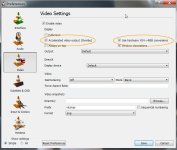
You can turn off this Overlay off in VLC by going to Tools > Preferences (Ctrl-P) and then Video.

FIRST uncheck the "Use hardware YUV->RGB conversions" box, THEN uncheck "Accelerated video output (Overlay)".

You have to do it in this order (which is a VLC programming error I think, since "Use hardware YUV->RGB conversions" is only an option IF you DON'T use overlay. But once you uncheck Overlay, the "Use hardware..." box becomes grayed out.

vlc.jpg

Anyway, if you uncheck these two boxes and save your settings, then close VLC and open the video again, your playback should almost match Windows Media Player and Premiere. Won't be an exact match, because every program is going to handle rendering the video a little different, but your colors should be almost the same.

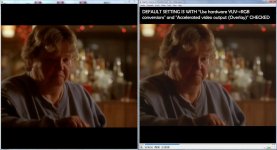
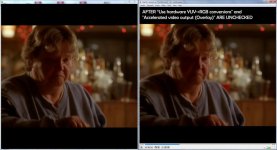
Here are some screengrabs of a scene in the Wire that show before and after in both WMP (left) and VLC (right):

before.jpg

after.jpg

And here's a closeup of before and after unchecking of just the VLC playback:

both.jpg

If you want more info on hardware overlay, Wikipedia has a good article. http://en.wikipedia.org/wiki/Hardware_overlay
 
Keylight is spot on. I would also like to add that this only happens on Nvidia graphics cards and some older Intel IGPs, not AMD or later Intel (since Sandy Bridge?). It is because Nvidia's Overlay defaults to 0-255 for TV levels. Hence, what should be black only shows up as 16 (dark grey) and white as 235. Keylight's solution works, but switches to software decoding exclusively. The other option is going into Nvidia's Control Panel and changing Video Settings. Nevertheless, I certainly recommend other players that use more advanced renderers, like EVR. Windows Media Player is the easiest bet. For best quality, I recommend Media Player Classic + MadVR renderer. The good news is VLC's upcoming Windows Store player using the new UI will utilize WinRT's new Media Foundation APIs. Judging by the current video playback apps, it is solid. It is doubtful they will ever improve the classic VLC in this regard though. Overlay is a throwback from the Windows XP era.

As for Quicktime, it is beyond saving...
 
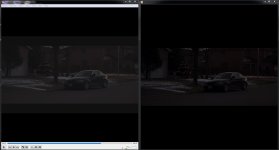
keylight, you guys are a genius! And Subhadip, thank you for the supplement! It makes a lot of sense now, especially as I use a Nvidia GTX 460 SE GPU. Just for reference, here is another comparison before keylight's fix: (Left is VLC, right is WMP)

R0~TS940x940~2366382.jpg
 
Back
Top