applying "multiply" to a group of shapes rather than one shape???

Being new to AE I just can't seem to figure this out.

In Apple Motion I could easily achieve this effect but have no idea how it's done in AE:

I have several shapes I created and instead of applying the "multiply" mode to my individual shapes I want to place my shapes in a Group and apply the "multiply" mode to the entire Group.

Is this possible in AE CS 5 ??? And if so, what's the trick. I'm just not able to figure it out so far.

Thanks in advance for any help.
 
You can either marquee select (shift + select) and do it with the layers selected then select multiply

or if you want you can precompose them into a single layer (shift + select, then Ctrl + Shift C , or Command +Shift C on a Mac) then select multiply
 
Thanks very much PDR,

But is there no way to do this without leaving the main composition? My two shapes are for a map of WWII Europe. I would need my map of Europe to be visible as I'm moving the pen points of my shapes.

Is this possible??? Thanks very much for your help.
 
Last edited:
But is there no way to do this without leaving the main composition? My two shapes are for a map of WWII Europe. I would need my map of Europe to be visible as I'm moving the pen points of my shapes.


I'm sorry I don't quite understand what you're asking or doing...? Can you clarify ?

Everything should already be in the main composition .

If you precompose the layer should still be in the main composition (think of it as a composition or a group of layers withing a composition). And if you've manually selected them, they are still in the main comp too...

eg. Put your main map on the bottom of the layer stack order, and your shapes on top in the layer stack?
 
Hi PDR,

Yes, Shape 1 and Shape 2 are in the Main Comp just above my map. The problem is that I can't move the pen points of either of my two shapes in the Main comp, only in the group comp. I have to switch back and forth between my main comp and group comp to see the result of my shape movement on the map.

Is there no way to have both compositions (main and grouped) open at the same time so like that I can see how the shapes are moving over the map?
 
Hi PDR,

Yes, Shape 1 and Shape 2 are in the Main Comp just above my map. The problem is that I can't move the pen points of either of my two shapes in the Main comp, only in the group comp. I have to switch back and forth between my main comp and group comp to see the result of my shape movement on the map.

Is there no way to have both compositions (main and grouped) open at the same time so like that I can see how the shapes are moving over the map?


Are you animating the shape path or the shape itself? When you say "pen points" , you mean vertices right ?

Is this a shape layer or a mask that you're referring to ?

If it's just 2 layers, then why not just select both and use multiply transfer mode. (e.g. ctnl + click). Even doing 1 at a time shouldn't be that difficult...
 
Hi PDR,

I'm referring to two shape layers. But i was hoping to use one to mask the other. But my mask is not behaving correctly. When I use the pen tool to draw a mezier mask of shape 1, the mask is always rectangular, not sure why.

I'm on a Mac, did you mean Ctrl+click or Cmnd+click? After selecting both shape layers, I tried that and nothing happens. Didn't see any "multiple transfer mode" in the menus. Can you point me to where this is??? Thanks again very much for your continued help.
 
I'm referring to two shape layers. But i was hoping to use one to mask the other. But my mask is not behaving correctly. When I use the pen tool to draw a mezier mask of shape 1, the mask is always rectangular, not sure why.

Do you have the shape layer selected before you start drawing the mask with the pen tool? If no layer is selected, you're actually making a shape layer, not a mask


I'm on a Mac, did you mean Ctrl+click or Cmnd+click? After selecting both shape layers, I tried that and nothing happens. Didn't see any "multiple transfer mode" in the menus. Can you point me to where this is??? Thanks again very much for your continued help.

Sorry, I meant command+click. To be clear here, are you talking about the "multiply" transfer mode that you see similiar in photoshop ? e.g. add/multiply/subtract/color burn etc....

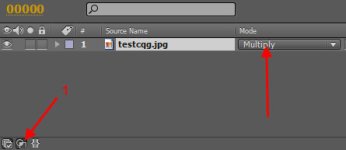
The transfer mode toggle switch might be hidden. Push the button labelled "1" in the screenshot attached to collapse/expand the transfer panel


1.jpg
 
Back
Top