
Hi. Here's a question for Premiere wizards - What is the "Level:" setting in Adobe Media Encoder? What is its purpose? When uploading a 1280 X 720 clip shot in 30p (progressive) to Vimeo, what is the best or correct setting?
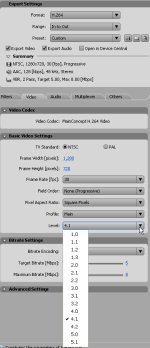
More specifically, from Premiere --> Export --> Adobe Media Encoder. Then select:
Format = "H.264"
Preset = "Custom"
Then click the "Video" tab. At the bottom of the "Basic Video Settings" frame is "Level:"
The attached screen shot shows the options.
Thank you for any feedback,
Dan.
p.s., I looked everywhere (help, books, Google) for a clear explanation and couldn't find anything. When you mouse over the field, it gives the crystal clear definition "Constrains the parameters of the encode." Uh huh... Right... Clear as mud.
More specifically, from Premiere --> Export --> Adobe Media Encoder. Then select:
Format = "H.264"
Preset = "Custom"
Then click the "Video" tab. At the bottom of the "Basic Video Settings" frame is "Level:"
The attached screen shot shows the options.
Thank you for any feedback,
Dan.
p.s., I looked everywhere (help, books, Google) for a clear explanation and couldn't find anything. When you mouse over the field, it gives the crystal clear definition "Constrains the parameters of the encode." Uh huh... Right... Clear as mud.

 rogar-BigGrin(DBG)