25p timeline in premier pro 2 ? i need help !

africanmarty

Well-known member
since there it no 'dedicated' time line for 25p in premier pro 2, i was wondering should i just capture in 'HDV 1080i 25' project mode ? ( wich is 50i i think) and use that timeline ? i will be useing a canon HV20 PAL version, and will be shooting in 25p, is their a plug in for a 25p timeline ? or will it not make a difference if i use the 'HDV 1080i 25' project mode to capture, edit and export my movies ? will the end result still be 25p ? or will it change it to 50i ? thanks.
 
when you get asked to choose your project settings, there should be an option tab at the top that says 'custom'. You should be able to go into that and create your own timeline using this. So basically just select the DV Pal setting, then go into the custom tab and just change it from interlaced to progressive, or no fields. I think this will get you what you want, i've been working in premiere pro 1.5, so things could be different, but give that a go.
 
Premier pro 2 doesnt have a 50i with either no fields/prpgressive option, it only has 50i with upper or lower field option. evan in 'custom settings' you cannot make a 50i timeline with no fields/ progressive.... Help... what do i do ??
 
i found out how to do it :) ( create a 25p timeline in premier pro 2 )

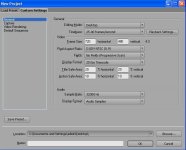
Open "File/New Project/Custom Sttings/General/Editing Mode - Desktp"
In "Fields" now u can choose "No Fields(Progressive Scan)"
"Pixel Aspect Ratio: Square Pixels (1.0)" <-- though DV 0.9 should work
"Timebase: 25,00"

Export your final project as progressive (export movie/settings/keyframe and rendering/fields: Nofields).

Heres a screen grab :

25p_2.JPG

HORAAAAAY !!!!!

regards Marty.
 
You probably want your Pixel Aspect Ratio rate to be 'D1/DV PAL', and your frame size to be 720x576 (or 'Square Pixels' and 1920x1080 for HD editing)
 
Last edited:
Claw said:
You probably want your Pixel Aspect Ratio rate to be 'D1/DV PAL', and your frame size to be 720x576 (or 'Square Pixels' and for HD editing)

Good point, I had made these adjestment but forget to repost, good eye claw. Now for editing progressive HDV on the hv20 (1080/25P) should i keep the same setting but change frame size to : 1920x1080, pixel aspect ration to : HD anamorphic 1080 1.067, go to capture and change capture format to : HDV capture and it should be good to edit in HDV progressive from the hv20 ?

And when capturing and editing HDV 1080/50i i guess i could just use the HDV1080i 25 (sony 50i) preset setting.

Just getting all this right so when i get it my premier pro 2 is all set up and ready to go :):):)

.. just 2 more weeks :)
 
africanmarty said:
Good point, I had made these adjestment but forget to repost, good eye claw. Now for editing progressive HDV on the hv20 (1080/25P) should i keep the same setting but change frame size to : 1920x1080, pixel aspect ration to : HD anamorphic 1080 1.067, go to capture and change capture format to : HDV capture and it should be good to edit in HDV progressive from the hv20 ?

And when capturing and editing HDV 1080/50i i guess i could just use the HDV1080i 25 (sony 50i) preset setting.

That's all right, except you should use Square Pixels for the "Pixel Aspect Ratio."
 
Thanx for the info guys.

One more question though, what Pixel ratio should I be using for SD footage shot on 25p using a DVX (for PAL TVs)? Is it D1/DV PAL 1.067 or Square Pixels 1.0 or any other?
 
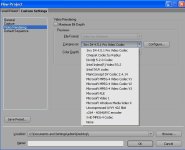
I have been using this 25p method to capture, edit & export 25p footage but the files are huuuge like 12Gb for 6-7 minutes of footage wich i understand becuase under 'video rendering' i'm using 'none' so its uncompressed witch i thought was a good way to keep quality up, but the file size is just too big. Now i thought i could just change the 'video rendering' to 'PAL DV' and have the same size file size as SD footage but its not there to pick ... what is the best compression ratio to use, and with what setting? to keep the best quality.

Heres a screen of what is avaliable to choose from (click thumbnail for bigger pic) :

25p compressor.JPG

Thanks guys

- regards Marty.
 
I'm not sure what would be the best one from that list, as they are mostly deliverable formats.

"Uncompressed 422 8bit" might be a bit smaller, but I doubt it would help much...

You might want to look at buying a Cineform codec like Aspect HD for editing with. I haven't used them myself, but I have heard great things about them. The only downside is that they're quite pricy; Aspect HD is $500.

Maybe someone else can suggest something cheaper?
 
so your saying that with the 'Aspect HD' the files captured will be smaller and more mangable ?
looks like it with this quote :

"CFHD Compressed File Sizes: Variable based on scene complexity.
1080i60 HDV files compress to typically 9MB - 14MB per second, approximately 40 GB/hour
720p30 HDV files compress to typically 7.5MB/sec, approximately 30GB/hour"

those would be soO0 much easier to manage but $500 is pretty steep

what else can i do ? maybe use this : http://www.adobe.com/support/downloads/detail.jsp?ftpID=3408
 
Last edited:
$500 is pretty steep. Does anyone know of any free or cheaper formats?

I would usually use a quicktime with Photo JPG or something to edit with, but for some reason you can't change the file format in Premiere Pro 2.0.

I haven't used Premiere in a while, but I'll take a look, and see what I can do.
 
Marty,
I would edit using the sony 50i preset. 1440x1080, 1.333par, upper field first. I'm not sure what your final delivery will be, but you can use the Adobe media encoder, and export an HDV file, similiar to the one you captured. Look under mpeg-2 HDV. Cineform is a great option but I agree that $500 is too much. If you want to encode to a DV file, or to an mpeg-2 for DVD. Open a new project with your DV settings, open your HD project in the new SD project, and scale it down. Then export from there. If you try to export directly from your HD timeline, Premiere will mess up the downconversion and the footage will look like crap.

Another tip, you can use a frameserver, and open your project in Sony Vegas, then export using Vegas' superior export capabilities. That is if you own Vegas as well.
-Kevin
 
hey kevin is this what you meant ?,

If you want to encode to a DV file, or to an mpeg-2 for DVD. Open a new project with your DV settings ( so use the DV PAL setting ?), open your HD project in the new SD project ( so i should cature the footage via firwire under the hv20 (1080/25P) preset i made ? and import it into a PAL DV timeline ?), and scale it down ( it will scan it down by itself when the hd hv20 preset fotage is imported to the PAL DV timeline). Then export from there (just export it as a normal PAL DV avi ?). If you try to export directly from your HD timeline, Premiere will mess up the downconversion and the footage will look like crap.( so i cant export a PAL DV from a HD timeline? ).

- marty.
 
Yes capture HDV using the PAL preset. I edit in an HD timeline so I'll have an HD version of my project for future Bluray/HDDVD delivery. I also open the same timeline in an SD timeline for DVD. You can export from an HD timeline, but it won't look good. Best results are achieved by the method I stated above. Give it a quick test and compare the two. By comparison, Sony Vegas has no trouble downconverting HD to SD. I like the way Premiere handles HDV footage, but much prefer Vegas for it's exporting, so I utilize both programs.
-Kevin
 
Back
Top