How do I shoot: DVD with 4x3 and 16x9 option?

OK, anyone freezing these days?..No..didn't think so :-)

Here is my question: I am shooting a music video, the final product is a DVD with a 3x4 and 16 x 9 option on it. I have been through a couple of threads here and it seems the best way to go is to shoot 3 x 4 and the crop it in post.

I am using FCP, how do i do this exactly? let's say I am done with the 4 x 3 version, do i just add black bars on top and the bottom, or shoul I actually create a new file format (16 by 9) into which i then place my 3 by 4 movie, with the top and bottom overlapping.

How does a DVD reads the format? meaning if the actual format is 4 x 3 and i just added the black bars to achive a widescreen look, does the DVD player still stretch mow whole (4 x3) image? If so, what should i do?

Thanks, and stay hydrated :-)

Oliver
 
First of all, if your camera can shoot 16x9, always use it in that mode if you are going to use any material for widescreen output. Anything shot in 4x3 ratio would lose resolution if upconverted for 16x9 output. Footage shot in 16x9 can be cropped or panned and scanned down to 4x3 without losing resolution.

If you are working with DV material, you need to choose a pixel aspect ratio to determine whether the rendered output will be standard or widescreen.

To author a DVD with both aspect ratios, you need only render out clips to both aspect ratios (rendering 16x9 for whatever you want displayed in widescreen and rendering 4x3 for whatever you want displayed in fullscreen). When you import the clips in to an authoring program it will maintain the properties of the clips if you make sure to set the authoring program to NOT transcode. If you need the authoring program to encode the clips then it may depend on the software itself as to whether you can set individual aspect ratios for individual clips.

For instance if I want to make a DVD of my documentary with an option for both fullscreen and widescreen versions of the film on the disc, I simply design a main menu with links to both the widescreen and fullscreen clips that I rendered out.

As far as shooting the footage goes, if the camera can shoot 16x9 video then definitely use that and shoot everything in 16x9. If it can only shoot 4x3 video then you might want to consider rendering everything in 4x3 and just letterboxing the top and bottom for the widescreen clips. That last choice would really be a poor scenario though. Hopefully you can shoot in 16x9 :)
 
Last edited:
Shoot in squeeze mode and then just setup FCP for a widescreen DV (pixel aspect ratio 1.2) composition and you're clips will "unsqueeze" and be in glorious widescreen! From here just render out in widescreen.

For the 4x3 output, you will want to setup the composition (not sure of this workflow in FCP -- I use Premiere Pro) for standard DV aspect ratio (pixel aspect ratio 0.9) and make sure that the aspect ratio for those individual "squeezed" clips is still set at widescreen 1.2. That way you,ve got a standard 4x3 foundation to build in and the clips will still be spread out to look normal in their original widescreen format. This is where you will need to possibly resize the clips so that the image fits precisely between the top and bottom. Some of the image on the sides will go out of bounds of the 4x3 work area. You'll be cutting off the sides of the image basically. Just render out in 4x3. You can do some "Pan and Scan" if you'd like as well -- meaning you could move the clips left or right to favor the content of the footage.

Good luck.
 
Last edited:
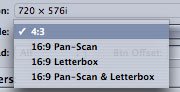
ok, here is a simple tip when authoring a DVD. if you create a 16x9 DVD, there is an option to automatically either letterbox, pan-scan or both. This means that when your disc is put into a DVD player that is set-up to a 4:3 TV, it will automatically letterbox it (or whatever you have chosen).

Think about it this way, when you go to the DVD rental place, you don't have to hire the 4:3 version or 16:9 version of Gladiator. There is only one version. The letterboxing happens in the DVD player.

So, shoot 16x9, edit 16x9, encode and author 16x9 and set it to letterbox or pan-scan automatically, and all will be good. No resolution lost, and every gets the right picture.

Cheers

Al
 

Attachments

  • 16x9.jpg
    16x9.jpg
    5.6 KB · Views: 0
Back
Top